

If you have spent any time looking at automation lately, you have probably seen a hundred articles telling you that AI will replace hours of tedious work. The pitch sounds fantastic, press a button, sit back, and let an intelligent workflow process your incoming leads, emails, and data.
However, when most non-technical founders, marketers, and operations managers actually try to set up their first AI workflow, they run into a wall. You open a tool like Zapier or Make, get asked for an API key or an endpoint schema, and immediately close the tab thinking you need a computer science degree to get anything done.
I felt the exact same way when I started building automations. When I set up my first AI-powered workflow, I expected it to break instantly. Instead, after a few minutes of mapping out the logic, I had a system running that saved me hours of manual reading and drafting every single week.
The truth is, you do not need to write a single line of code to build a reliable AI workflow in 2026. You just need to understand how the moving parts connect.
In this step-by-step guide, I will walk you through building your very first automated AI workflow from scratch. We will cover the basic mechanics, walk through a real-world tutorial step-by-step, and highlight the exact pitfalls to avoid so your automation doesn’t break in production.
Quick Summary:
Core Concept: Automated AI workflows combine a Trigger (event), an AI Processing Step (LLM analysis), and a Destination (action).
No-Code Stack: Zapier, Make, or n8n allow non-technical teams to automate workflows without writing code.
Top Use Case: Automate lead classification, customer feedback analysis, meeting summaries, and invoice extraction.
How an Automated AI Workflow Works?
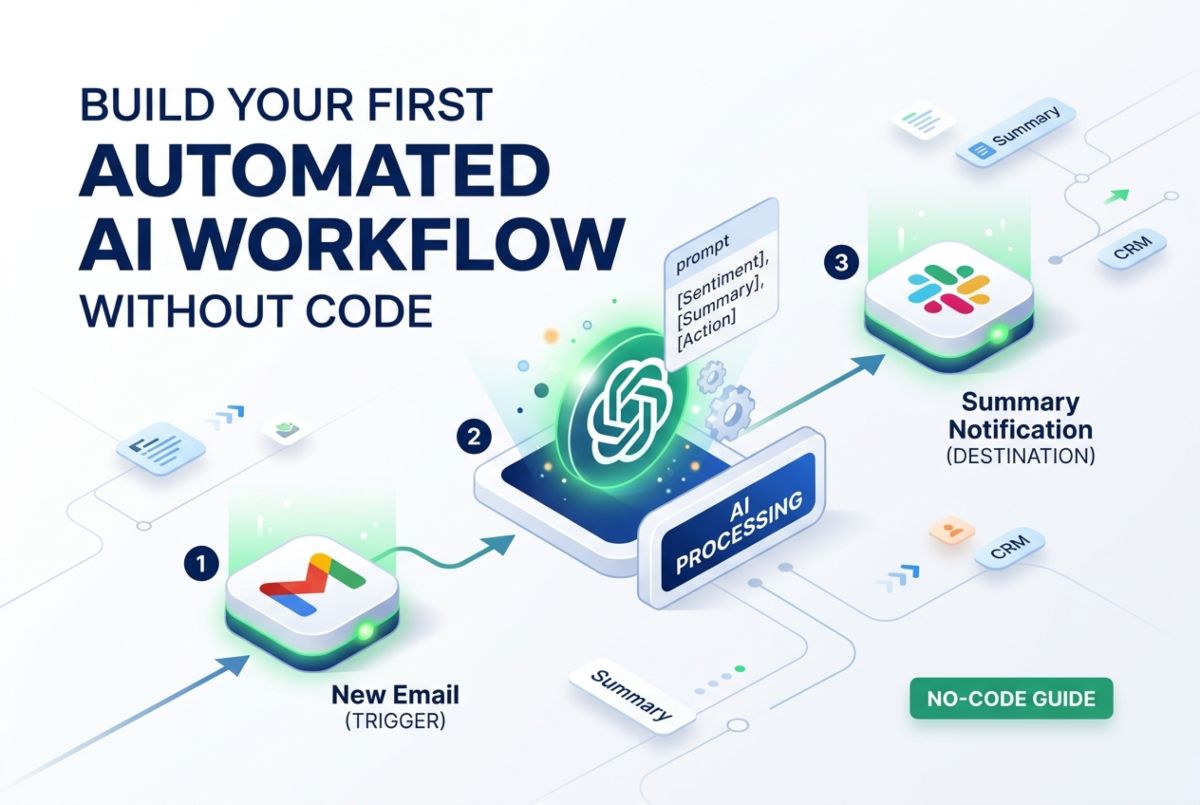
Before jumping into the visual builder, it helps to understand what is actually happening behind the curtain. Every automated workflow, no matter how simple or complex, consists of three distinct components:

1. The Trigger (The Catalyst)
This is the event that starts your workflow. It could be a new form submission on your website, a new email hitting your inbox, a tag applied in your CRM, or a new row added to a Google Sheet.
2. The AI Step (The Brain)
Instead of simply copying raw text from point A to point B, you pass the data into a Large Language Model (LLM), such as OpenAI’s GPT-4o, Anthropic’s Claude, or Google’s Gemini.
The AI reads the incoming payload, analyzes it according to your prompt instructions, and outputs a formatted result.
3. The Destination Action
This takes the output generated by the AI step and routes it to where it needs to live. This could mean posting a summary into a Slack channel, updating a CRM contact, creating a Notion page, or sending a draft email back to a client.
When you chain these three steps together, you move from basic data routing to true intelligent automation.
Choosing Your Stack: Zapier vs. Make vs. n8n
To build a no-code AI workflow, you need an orchestration platform. While there are dozens of options on the market, three tools handle the vast majority of non-technical automation builds:
| Features | Zapier | Make (formerly Integromat) | n8n |
| Best For | Beginners & Fast Builds | Visual Flow & Complex Logic | Technical Power Users & Self-Hosters |
| Learning Curve | Extremely Low | Moderate | Moderate to High |
| Best AI Model Support | Native OpenAI (GPT-4o, o3-mini), Anthropic (Claude 3.5 Sonnet, Opus), Google (Gemini 1.5/2.0), and built-in AI by Zapier | OpenAI (GPT-4o, Vision, Whisper), Anthropic Claude, Google Gemini AI Studio, Perplexity, and custom API webhooks | OpenAI (GPT-4o), Anthropic (Claude 3.5 Sonnet), Google Gemini, Groq, plus local LLMs via Ollama & custom LangChain nodes |
| Built-in AI Tools | AI by Zapier / Central | OpenAI & Claude Modules | Native AI Agent & LangChain Nodes |
| Cost Trajectory | Gets expensive quickly at volume | Highly affordable execution tiers | Free if self-hosted; cheap managed cloud |
| Custom Code Needed? | No | No (optional formulas) | No (optional JS snippet support) |
If you want a detailed breakdown of how all the top automation tools rank side-by-side, check out our guide on the Best AI Workflow Automation Tools.
For this tutorial, we will use Zapier (or Make), as both allow you to select pre-built AI modules without managing raw webhooks or API authentication code manually.
Step-by-Step Tutorial: Building an AI Customer Feedback & Lead Classifier
To make this actionable, we are going to build a high-value workflow that every business can use: An Automated Customer Feedback Classifier & Slack Alert System.
The Goal: Whenever a customer submits a feedback or inquiry form on your website, our AI workflow will:
- Extract the submission content.
- Analyze the sentiment (Positive, Neutral, Urgent Bug, Sales Lead).
- Draft a concise 2-sentence summary and suggested next steps.
- Push a structured alert into a specific Slack channel based on priority.
Step 1: Set Up Your Trigger (Google Sheets or Typeform)
First, create a simple data source. For this example, we’ll use a Google Sheet titled Customer Inquiries with columns for Timestamp, Customer Name, Email, and Message.
- Log in to your Zapier or Make account and click Create New Workflow (Zap or Scenario).
- Choose Google Sheets (or your form builder like Typeform or HubSpot) as the Trigger App.
- Select the Event i.e. New Spreadsheet Row.
- Connect your account and select your Customer Inquiries sheet.
- Click Test Trigger to pull in a recent sample row.
My Tip: Always create a realistic test entry in your spreadsheet before building the rest of the workflow. If your test data is just “test test 123”, the AI step will not have enough context to give you a clean test output in the next steps.
Step 2: Add the AI Processing Step
Now, add the action that turns raw text into actionable insights.
- Click the + icon to add a new step.
- Search for OpenAI (or ChatGPT / AI by Zapier) as the Action App.
- Select the Action Event: Send Prompt / Conversation.
- If prompted for connection, you can sign in using your OpenAI account or use Zapier’s built-in AI module.
- In the Prompt Window, construct a structured instruction using variables mapped from Step 1.
Writing a Structured Prompt for Workflows
Do not just write “Summarize this email.” Unstructured prompts yield inconsistent outputs that can break downstream actions. Instead, use a strict layout like this:
“You are an executive assistant for an online software platform.”
Analyze the following customer message and perform three tasks:
1. Sentiment Classification: Label as [Sales Opportunity], [Feature Request], [General Inquiry], or [Urgent Bug].
2. Key Summary: Write a bullet point summarizing the customer’s core issue in under 25 words.
3. Recommended Action: State who should handle this and what the immediate next step is.Customer Name: (Step 1: Customer Name)
Customer Email: (Step 1: Email)
Message Body: (Step 1: Message)Format your response exactly as follows:
Category: (Insert Category)
Summary: (Insert Summary)
Action Plan: (Insert Action)
Click Test Step. You should see OpenAI return a formatted output categorizing your sample message accurately.
Step 3: Parse and Structure the Output (Optional but Recommended)
If you want your workflow to route different categories to different teams (for instance, pushing Urgent Bug items to an engineering channel and Sales Opportunity items to a sales rep), you can insert a Filter or Router step.
- Add a Router / Branching Node:
- Path A (Urgent Bug): If the AI output contains Urgent Bug, trigger an urgent notification in your #engineering-alerts Slack channel.
- Path B (Default): Route all other categories to your #general-inquiries channel.
Branching logic allows you to manage operational edge cases without needing complex custom scripts.
Step 4: Configure Your Destination (Slack, Email, or CRM)
Finally, set up where the AI’s output gets delivered.
- Add a final step and select Slack (or your preferred communication tool like Microsoft Teams or HubSpot).
- Choose the Action Event: Send Channel Message.
- Pick your channel (e.g., #customer-feedback).
- In the Message Text field, map the output from the OpenAI step:
*New Customer Submission Analyzed by AI*
*Customer:* (Step 1: Customer Name) (Step 1: Email)
*Classification:* (Step 2: Category)
*Summary:* (Step 2: Summary)
*Suggested Action:* (Step 2: Action Plan)
Run a end-to-end test. If configured correctly, a clean, readable notification will immediately pop up in your Slack channel!
What I Learned Building My First AI Automation

When I built my first automated workflow, I assumed everything would run smoothly once the green “Publish” button was clicked.
Within 48 hours, I noticed several small issues that taught me valuable lessons about no-code AI automation.
1. Large Language Models are Non-Deterministic
Unlike traditional software that gives the exact same output for an input every time, AI models can vary their phrasing slightly. If your downstream steps rely on exact text matching (like checking for the word “Bug”), a slight variation like “Critical Defect” can cause a filter step to fail.
How to Fix it?
Constrain the AI prompt strictly by listing the exact acceptable output tags, or lower the LLM’s Temperature parameter (set it to 0.0 or 0.2) to make responses more predictable.
2. Guard Against Missing Data
What happens if a user submits a form without filling out the message body? If your trigger sends an empty string into the OpenAI step, the AI may hallucinate or return an error, halting the entire workflow.
How to fix it?
Put a basic Filter step right after the Trigger: Only continue if “Message Body” exists and is not empty.
3. Keep a Human in the Loop for External Actions
It is tempting to automate responses so that an AI reads an incoming email and sends a reply straight back to a customer without human review. Do not do this on day one.
How to fix it?
Have the AI step generate a Draft Email inside Gmail or your CRM instead of sending it directly. That way, a team member can review the draft with one click before sending. Once confidence in the AI prompt reaches 99%, you can consider full automation.
3 More No-Code AI Workflows You Can Build Today
Once you master the Trigger → AI Action → Destination model, you can apply it to hundreds of repetitive business operations. Here are three high-impact ideas to build next:
1. Automated Meeting Notes & Action Item Extractor
- Trigger: New transcript available in Fireflies.ai, Fathom, or Otter.ai.
- AI Action: Extract key decisions, action items grouped by owner, and open questions.
- Destination: Create a structured page inside your team’s Notion workspace or Google Docs.
2. Social Media & Blog Content Repurposer
- Trigger: New blog post published on your WordPress or Ghost site RSS feed.
- AI Action: Generate a short bulleted LinkedIn post and 3 tweet variations summarizing the key takeaways.
- Destination: Save as draft posts in Buffer, Hootsuite, or a Google Sheet for approval.
3. Invoice & Expense Data Extractor
- Trigger: New attachment received in a dedicated expenses@yourcompany.com inbox.
- AI Action: Extract Vendor Name, Invoice Date, Total Amount, and Tax Line Items from the PDF/image text.
- Destination: Create a new transaction in QuickBooks Online or Zoho Books automatically.
Frequently Asked Questions (FAQs)
Do I need to pay for an OpenAI API key to use AI in Zapier or Make?
It depends on the platform. Zapier offers built-in AI tools (like AI by Zapier) that run on your existing Zapier account credits. However, connecting your own OpenAI or Anthropic API key gives you access to newer, more powerful models and significantly reduces execution costs if you are running hundreds of tasks a day.
What happens if the AI step fails or generates bad output?
Most platforms include error-handling settings. You can configure “fallback” actions, such as sending an email alert to an admin if a step errors out, or turn on execution logs so you can replay failed runs after tweaking your prompt.
Is no-code AI workflow automation secure for sensitive customer data?
Most major platforms (Zapier, Make, n8n) offer enterprise-grade encryption for data in transit and at rest. Additionally, major API providers like OpenAI state that data sent via their official API is not used to train public models.
However, always review your industry’s compliance guidelines (such as HIPAA or GDPR) before passing personally identifiable information (PII) into third-party tools.
Ready to Scale Your Automation Stack?
Building your first automated AI workflow without code is one of the highest-leverage skills you can acquire. Once you replace manual data copying with intelligent background tasks, you free up dozens of hours every month to focus on high-impact work.
If you are ready to evaluate platforms, choose the best visual builders, or explore advanced open-source tools like n8n, read our complete rundown on the 14 Best AI Workflow Automation Tools.
If you have any question or need assistance, you can reach out to me here.
You May Like To Read More:
