

Outbound prospecting is no longer about mass-email blasts or sending generic template messages on LinkedIn. If you want high-converting B2B prospects today, your workflow needs deep context, real-time profile analysis, and hyper-personalized messaging.
Anthropic’s Claude AI excels at analyzing complex profiles, extracting strategic pain points, and drafting human-level outreach. However, Claude Desktop on its own cannot browse live LinkedIn profiles, pull lead data, or trigger connection requests.
In this blog, I will be discussing how to connect Claude AI directly to LinkedIn using the Model Context Protocol (MCP) and APIs to automatically find B2B leads, extract profile insights, draft targeted messages, and push those leads straight into your CRM.
Why Connect Claude AI with LinkedIn for Prospecting?

Traditional outbound software relies on rigid logic: “If job title = VP, send Template B.”
When you pair Claude AI’s natural language processing with LinkedIn’s database, your prospecting workflow becomes dynamic:
1. Context-Aware Lead Scoring
Claude reads a prospect’s actual LinkedIn activity, past posts, recent promotions, and company news, not just their job title.
2. Personalized Outreach at Scale
Claude writes bespoke connection requests and direct messages based on real behavioral triggers instead of standard placeholder tags like {first_name}.
3. Automated Research
Claude extracts lead data, formats it into structured JSON/CSV, and classifies prospect fit before you spend time reaching out.
4. Reduced Context Switching
You can run prospect discovery, message drafting, and workflow execution directly within Claude Desktop without jumping between browser tabs.
How Many Businesses Are Using AI for Lead Generation?

Artificial intelligence adoption across sales and revenue teams has crossed a tipping point:
According to recent B2B industry research from McKinsey, over 71% of high-growth B2B organizations now leverage AI tools within their sales and lead generation stacks.
More than 55% of sales leaders report using generative AI specifically for lead scoring, account intelligence, and personalized outreach drafting.
Teams incorporating AI into outbound workflows report a 2x to 3x increase in response rates and up to a 40% reduction in customer acquisition costs (CAC).
Step-by-Step Guide: Connect Claude Desktop to LinkedIn via MCP
To give Claude live access to LinkedIn, I use Anthropic’s Model Context Protocol (MCP), an open protocol that connects AI models to external tools, APIs, and databases.
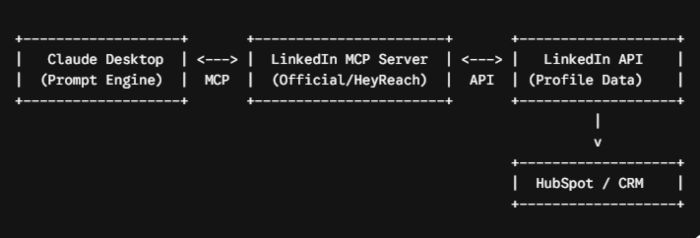
Step 1: Install Claude Desktop and Node.js
First, ensure you have the required desktop software installed:
- Download and install Claude Desktop for macOS or Windows.
- Download and install Node.js (v18 or higher), which includes npx (required to run MCP servers locally).
Step 2: Configure MCP in Claude Desktop
Claude uses a configuration file named claude_desktop_config.json to communicate with external MCP tools.
- Open Claude Desktop.
- Navigate to Settings > Developer > Edit Config (or manually locate the file on your machine):
-
- macOS: ~/Library/Application Support/Claude/claude_desktop_config.json
- Windows: %APPDATA%\Claude\claude_desktop_config.json
Step 3: Get Your LinkedIn API / Automation Credentials
Because LinkedIn’s native REST API heavily restricts web scraping, most sales teams use an intermediary LinkedIn API server or automation partner (such as HeyReach, Unipile, or custom Puppeteer/Playwright MCP servers) to bridge the connection.
- Obtain your API Access Key / Bearer Token from your LinkedIn API/automation provider.
- Copy your credentials into a secure text document.
Step 4: Add the LinkedIn MCP Server to Your Config
Open claude_desktop_config.json in a text editor (like VS Code or Notepad) and define your LinkedIn MCP server.
Here is a standard configuration template:
{
“mcpServers”: {
“linkedin-lead-gen”: {
“command”: “uvx”,
“args”: [
“mcp-linkedin”
],
“env”: {
“LINKEDIN_API_KEY”: “YOUR_ACTUAL_API_KEY_HERE”,
“LINKEDIN_ACCOUNT_ID”: “YOUR_ACCOUNT_ID_HERE”
}
}
}
}
Save the JSON file and fully restart Claude Desktop. Upon relaunch, you will see a small hammer icon (🛠️) in the bottom right corner of Claude Desktop, confirming your MCP server is active.
The Master Prompt to Extract & Qualify Leads with Claude
With LinkedIn connected, you can execute deep lead discovery prompts directly inside Claude.
Paste this structured prompt into Claude Desktop to extract and score leads:
Act as a Senior B2B Outbound Strategist.
Task:
1. Use the LinkedIn tool to search for 15 prospects matching the following ideal customer profile (ICP):
– Job Titles: Chief Marketing Officer, VP of Growth, Head of Sales
– Industry: B2B SaaS or Digital Marketing Agencies
– Company Size: 11-50 employees
– Location: United States or United Kingdom2. For each lead retrieved, analyze their recent posts and profile summary.
3. Output a structured table containing:
– Full Name
– Current Title & Company
– LinkedIn Profile URL
– Key Pain Point (inferred from recent posts/profile)
– Lead Score (1-10 based on ICP fit)
– A personalized 2-sentence connection request mentioning a specific detail from their recent activity.4. Format the final output as clean JSON so it can be pushed directly to my CRM.
Safety Note
Keep initial automated daily connection requests low (20–30/day max) and warm up your account gradually to remain well within LinkedIn’s terms of service and avoid account restrictions.
Syncing Identified Leads Automatically Into Your CRM
Finding leads in Claude is only half the battle. To scale your outbound pipeline, those qualified prospects must automatically sync to your Customer Relationship Management (CRM) platform.
In a previous guide, we reviewed the Best CRMs for Small Businesses, breaking down options like HubSpot, Zoho CRM and Pipedrive.
Here is how to set up the automatic sync loop based on your CRM selection:

1. HubSpot CRM (Best for Native Automation)
If you are using HubSpot CRM, you can configure an MCP HTTP server or use a Make.com / Zapier webhook connected to Claude.
How it works
Once Claude outputs the lead payload, a single confirmation prompt (“Sync these qualified leads to HubSpot”) triggers the webhook. HubSpot creates a new contact record, assigns a lead score, and sets a task for your sales reps to send the drafted message.
2. Pipedrive (Best for High-Volume Deal Pipelines)
For deal-driven sales teams, Pipedrive allows you to map Claude’s output directly to your deal stages.
How it works
Leads generated by Claude enter Pipedrive under the “Prospecting / Unqualified” column. Once the connection request is accepted on LinkedIn, a webhook moves the deal to “Contact Made.”
3. Zoho CRM (Best for Multi-Channel Outreach)
If your stack relies on Zoho CRM, leverage their native API keys within a unified workflow. Claude formats the lead details and outreach copy, while your CRM triggers the automated follow-up sequence across email and LinkedIn.
Summary Workflow Checklist
- Install: Claude Desktop + Node.js.
- Configure: Update claude_desktop_config.json with your LinkedIn MCP server details.
- Execute: Run structured ICP prompts inside Claude to gather profile intelligence.
- Automate: Link Claude’s JSON output directly to HubSpot or Pipedrive (as detailed in our CRM Buyer’s Guide) for real-time lead management.
You May Like To Read:
